Advanced Editing

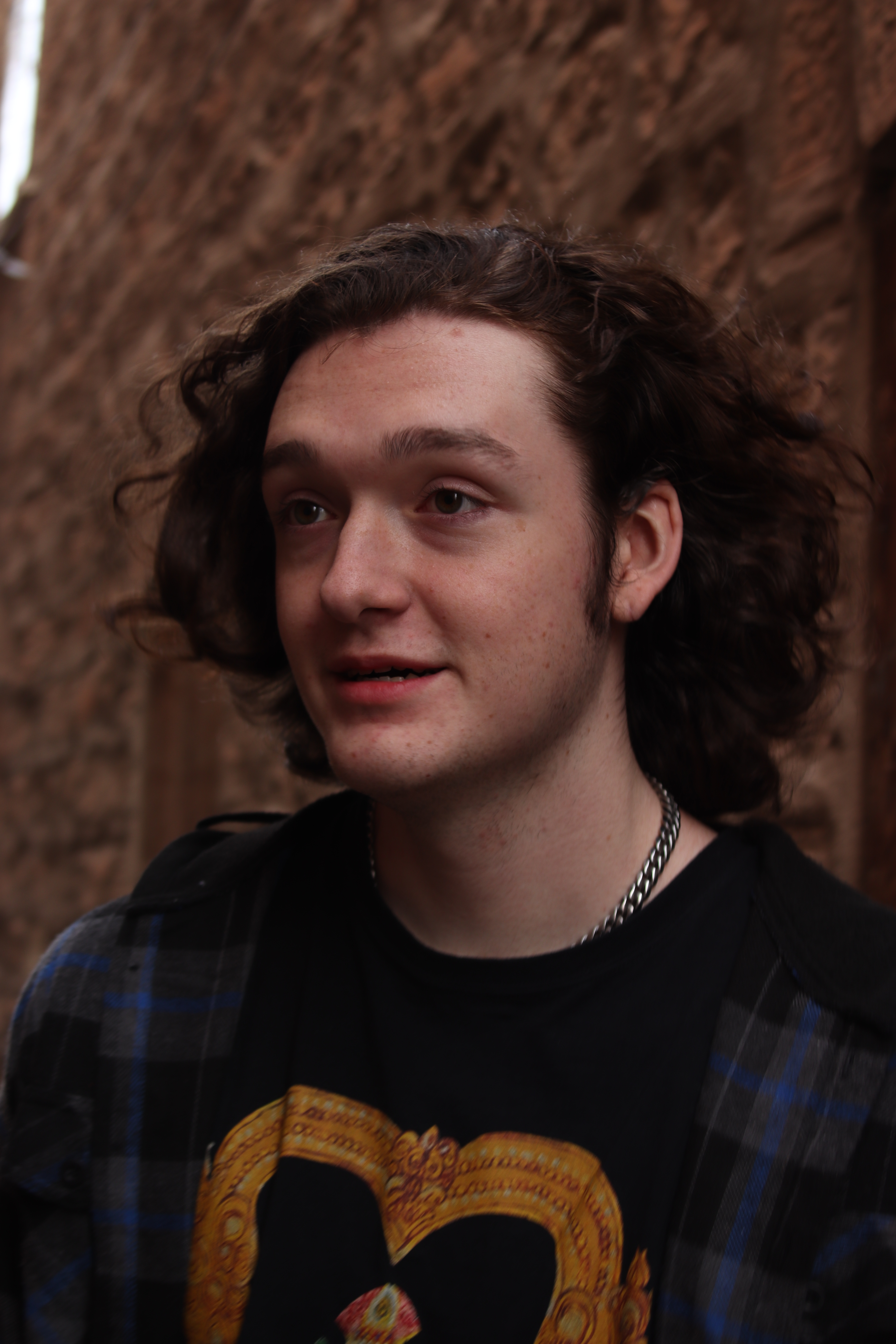
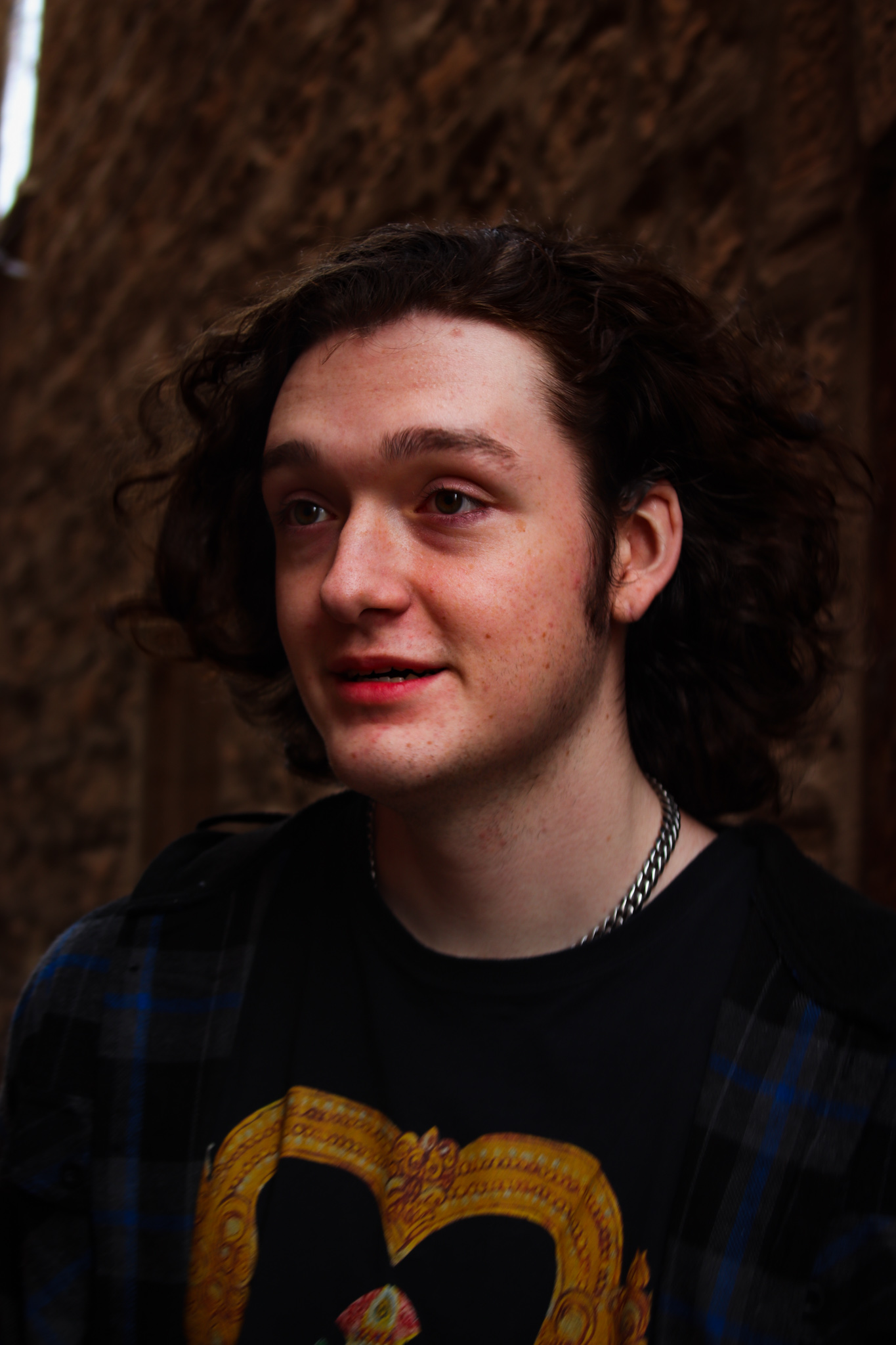
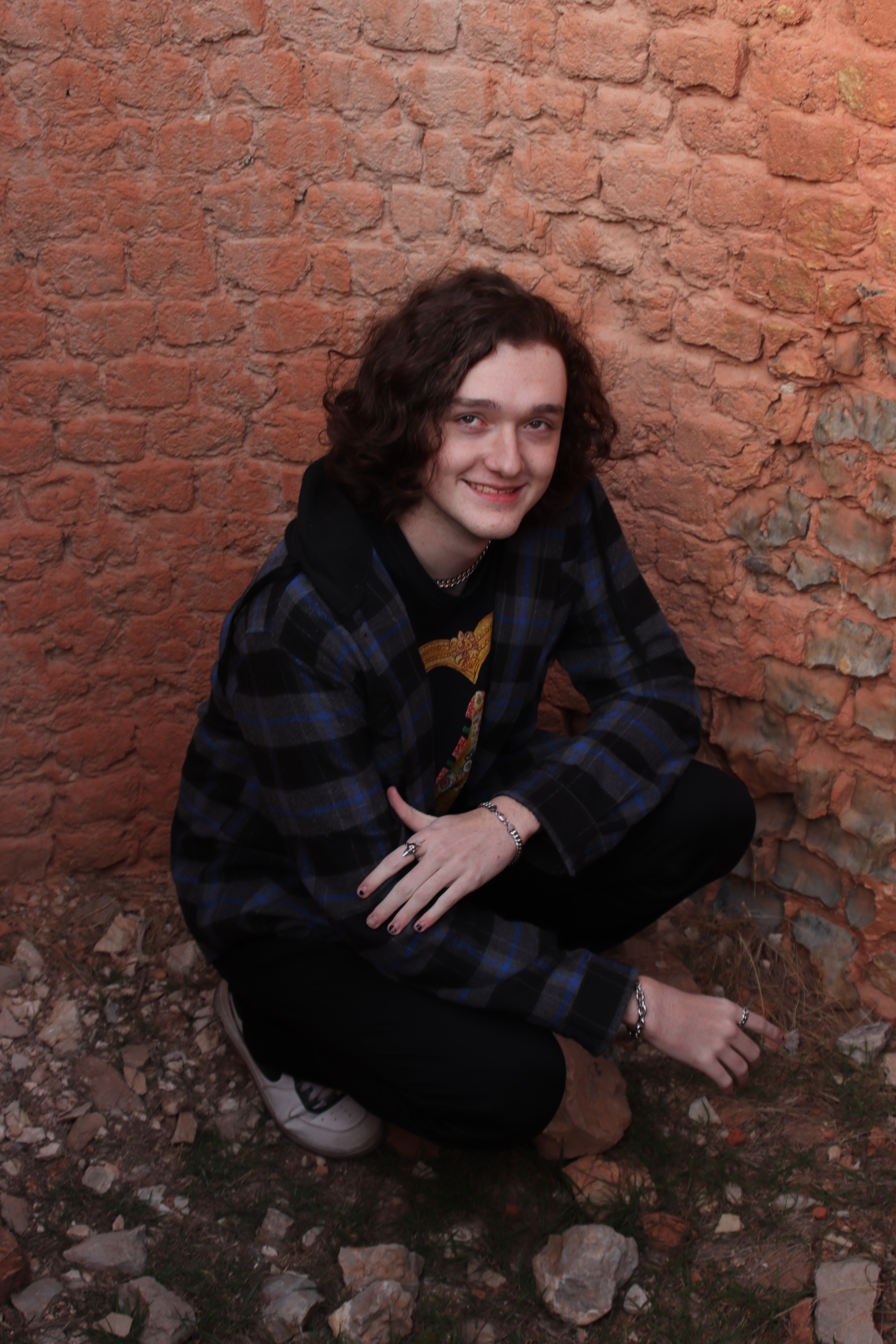
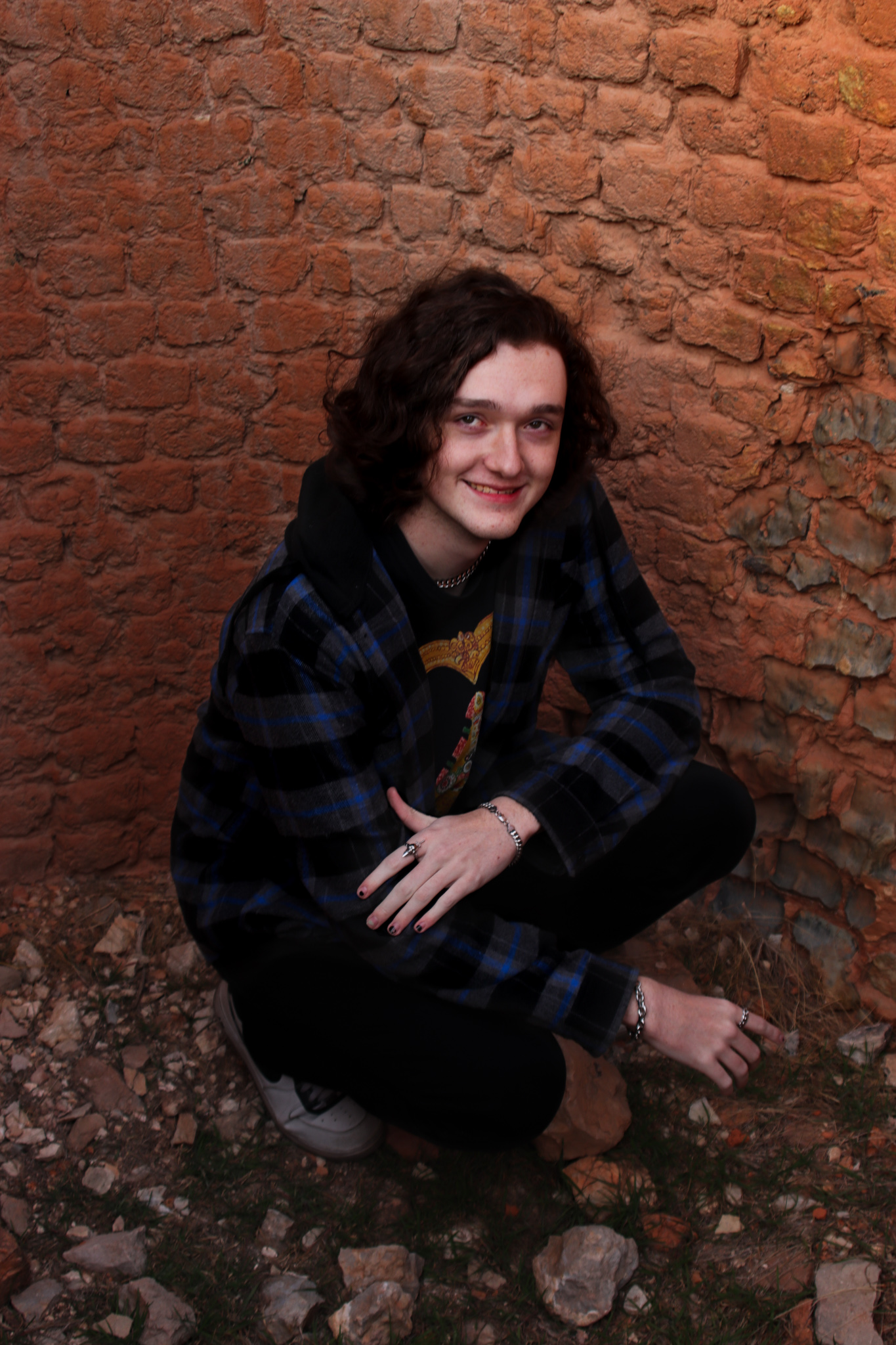
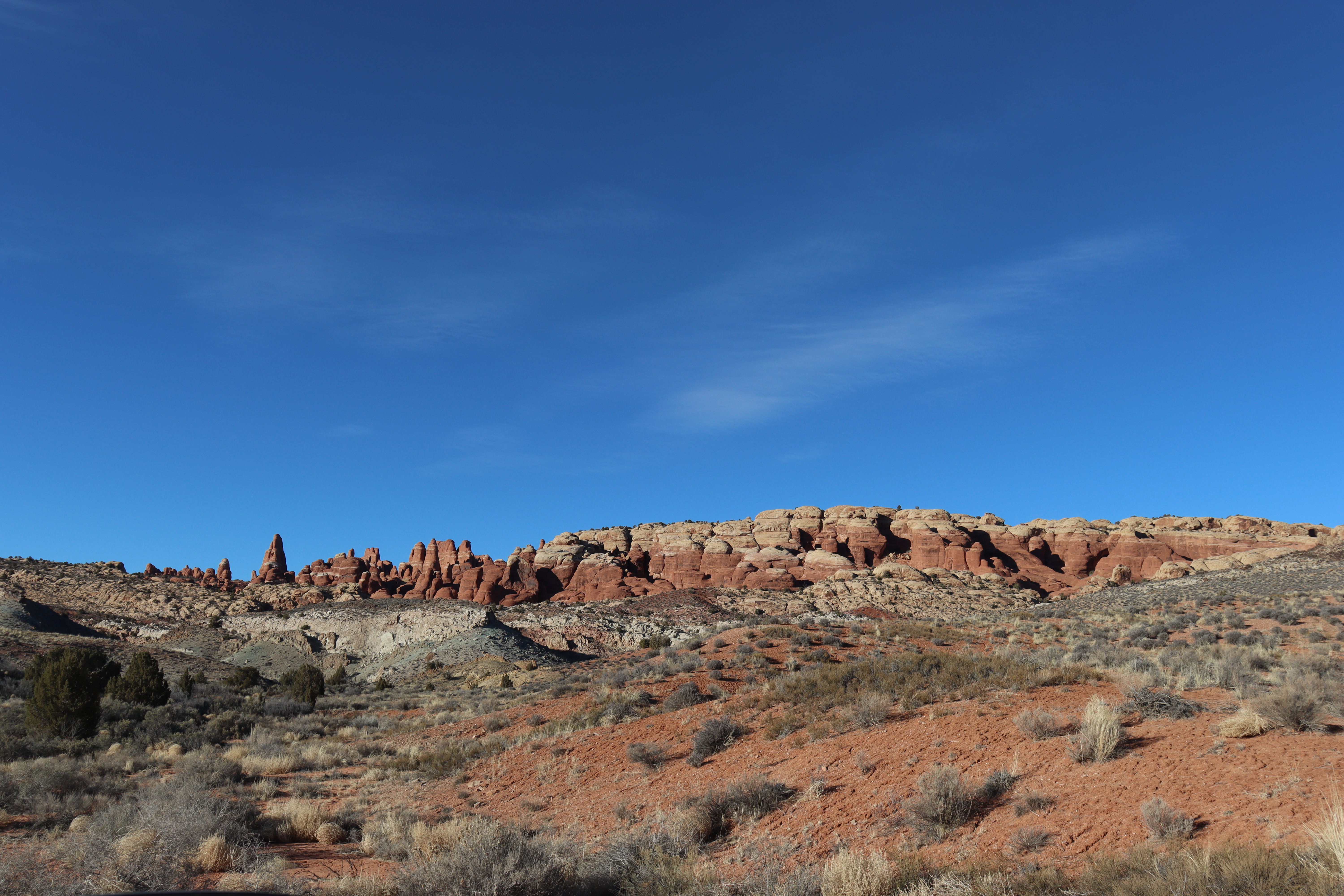
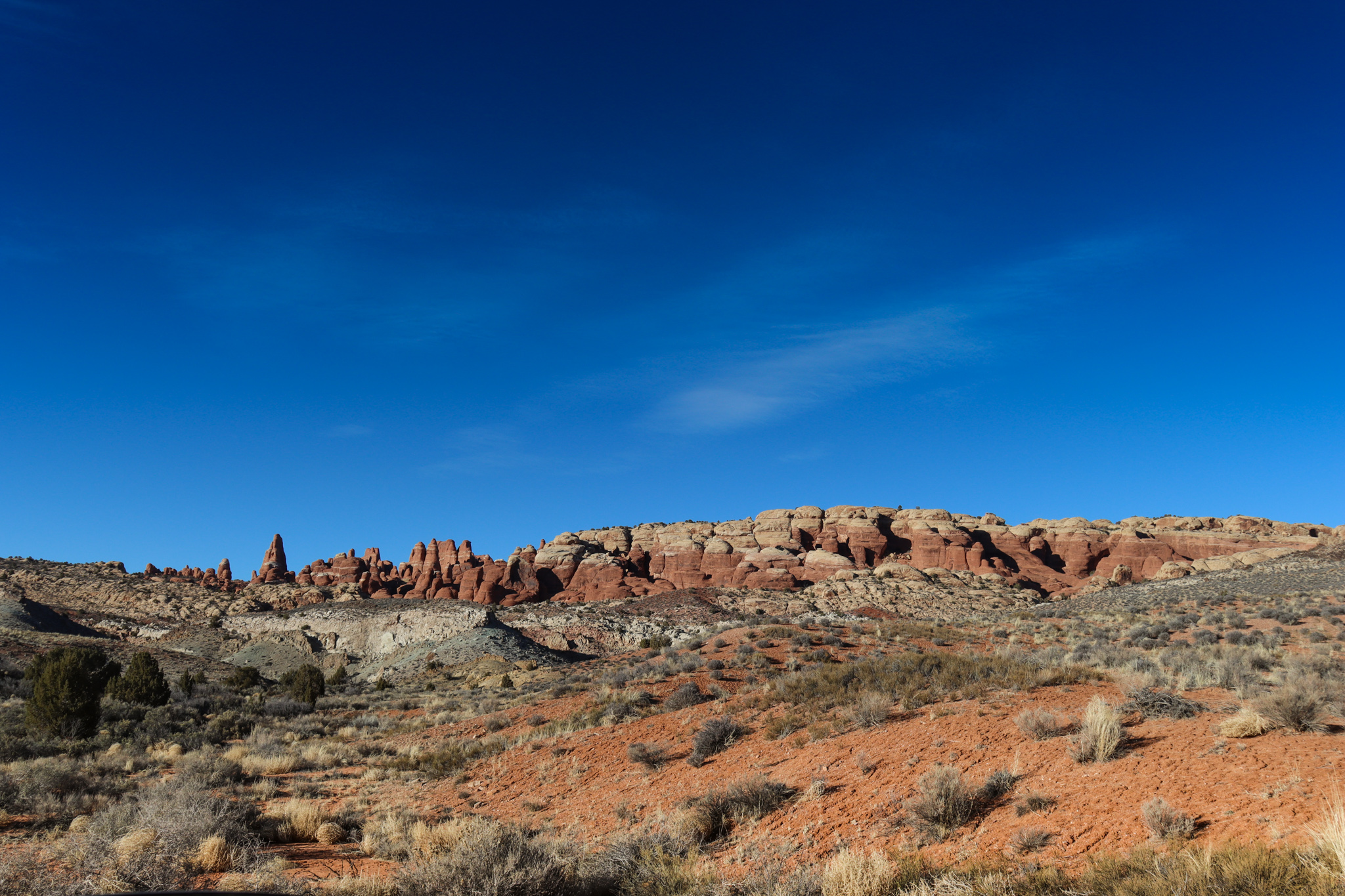
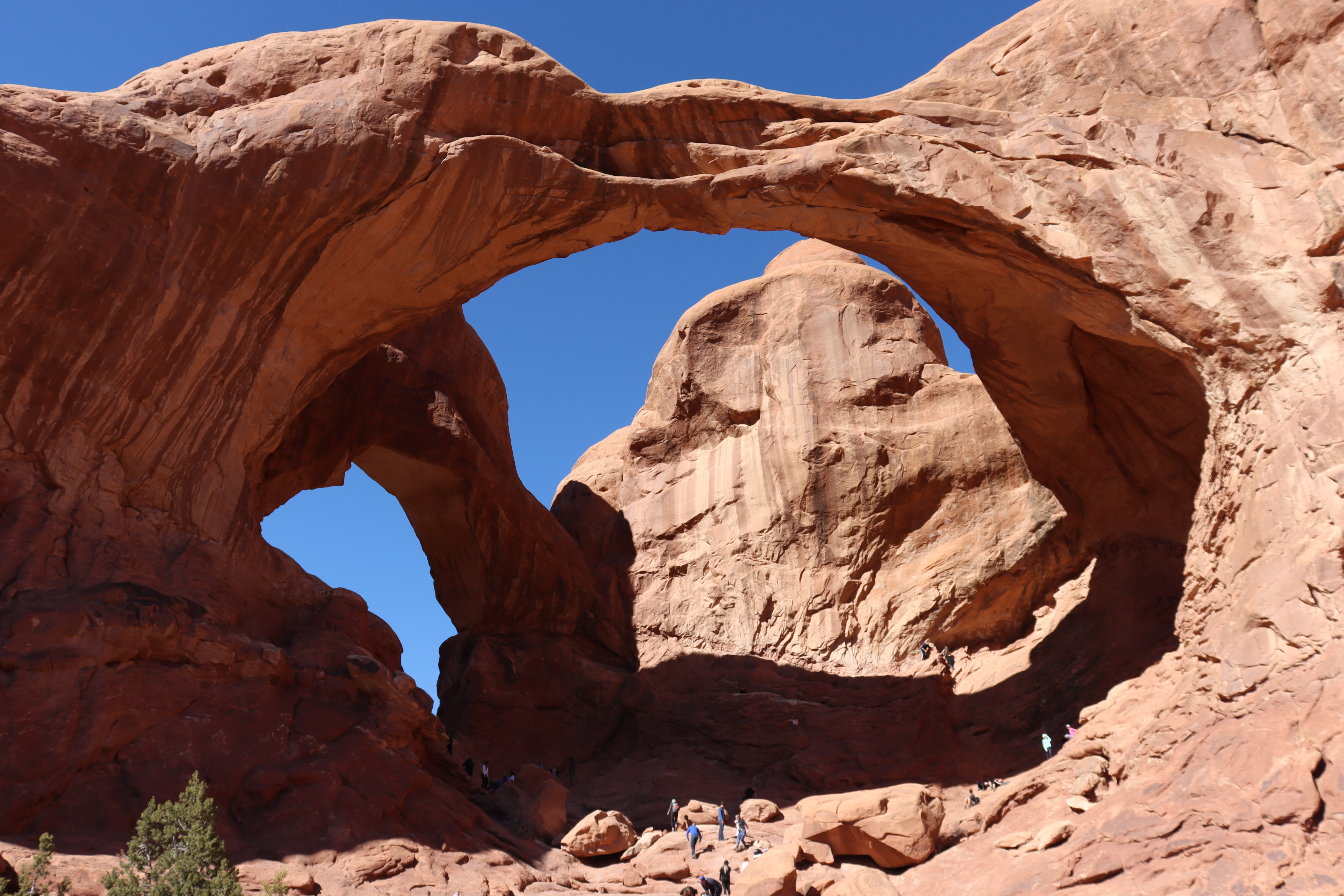
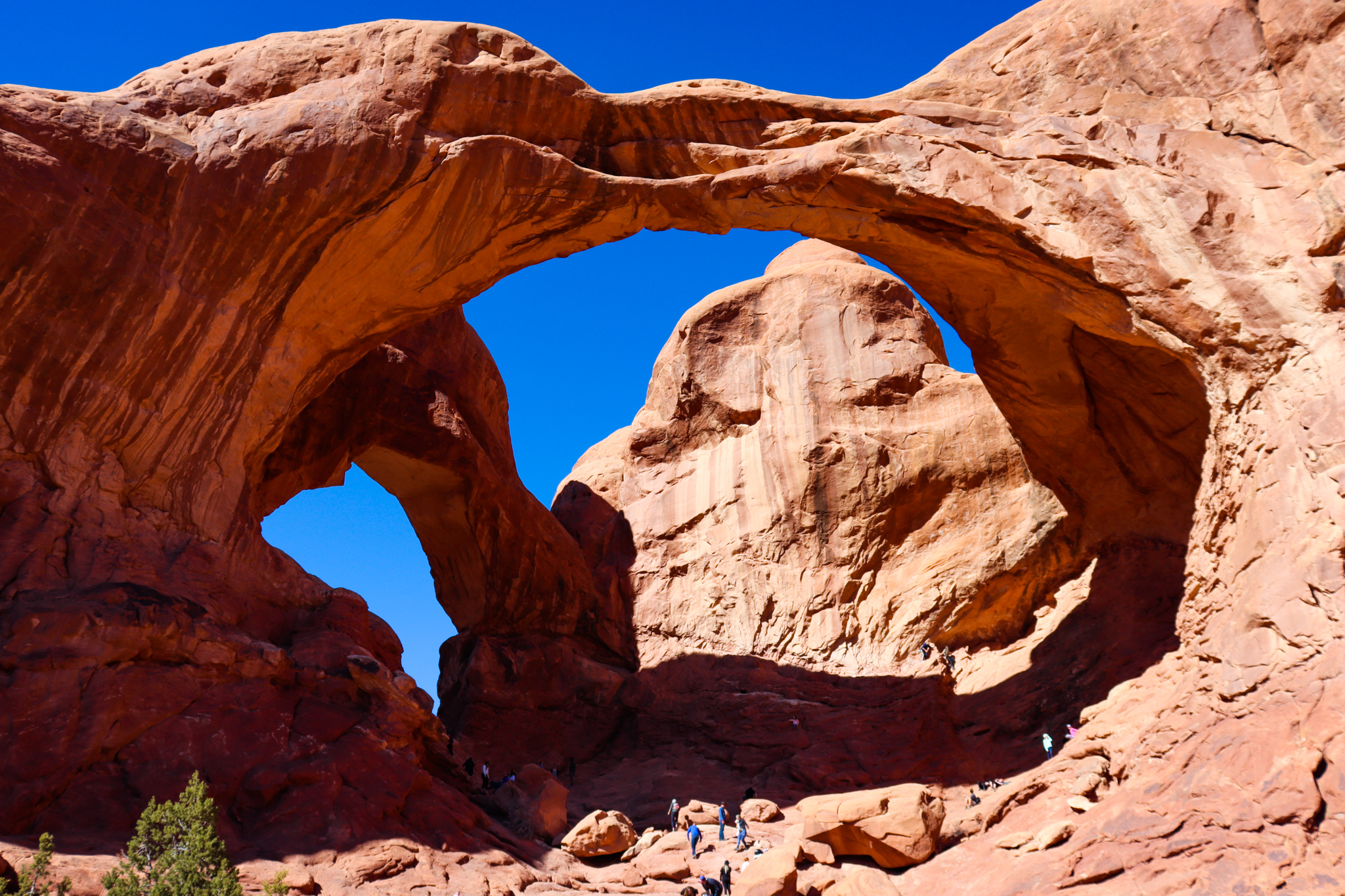
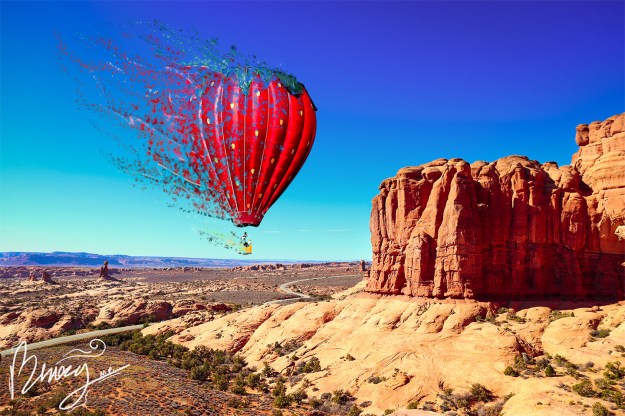
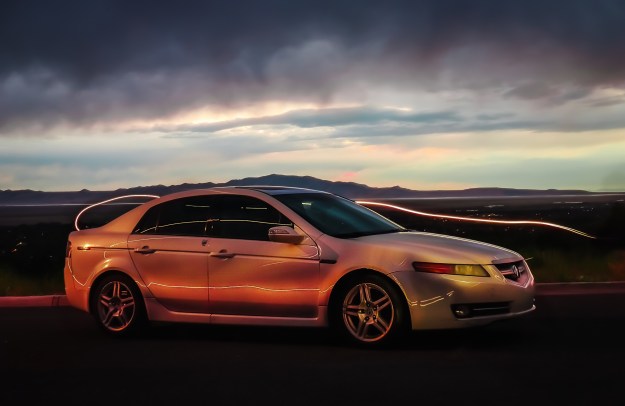
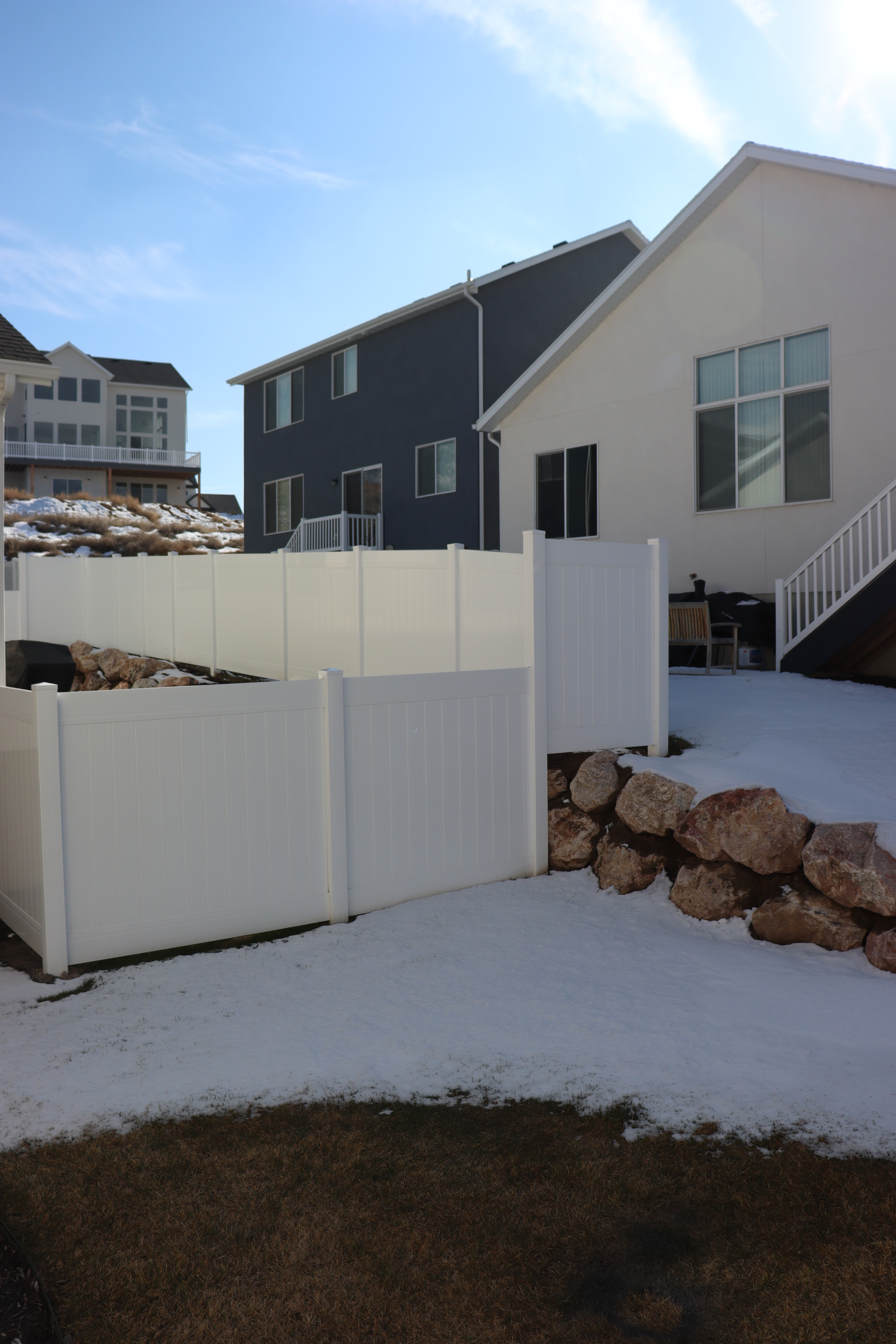
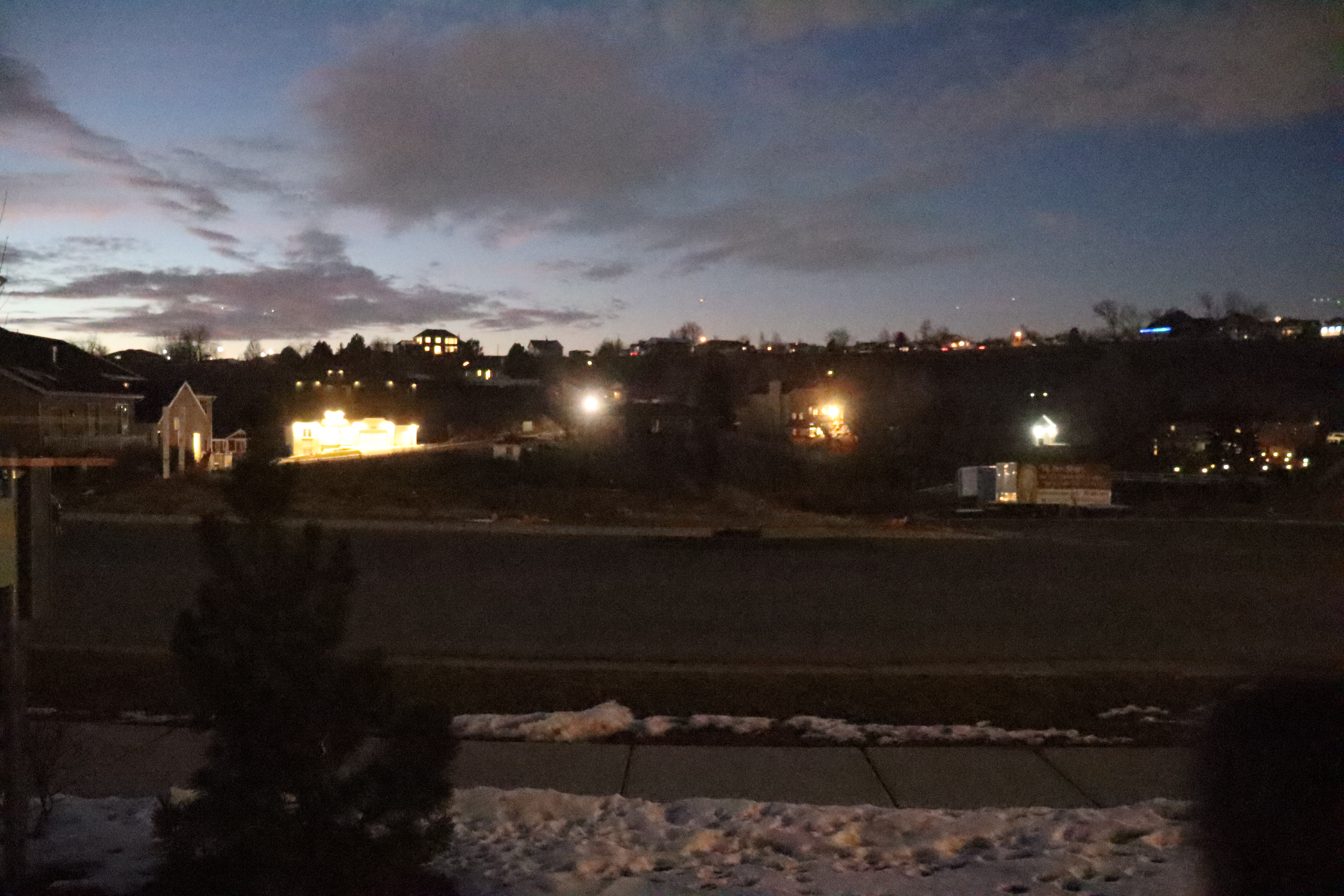
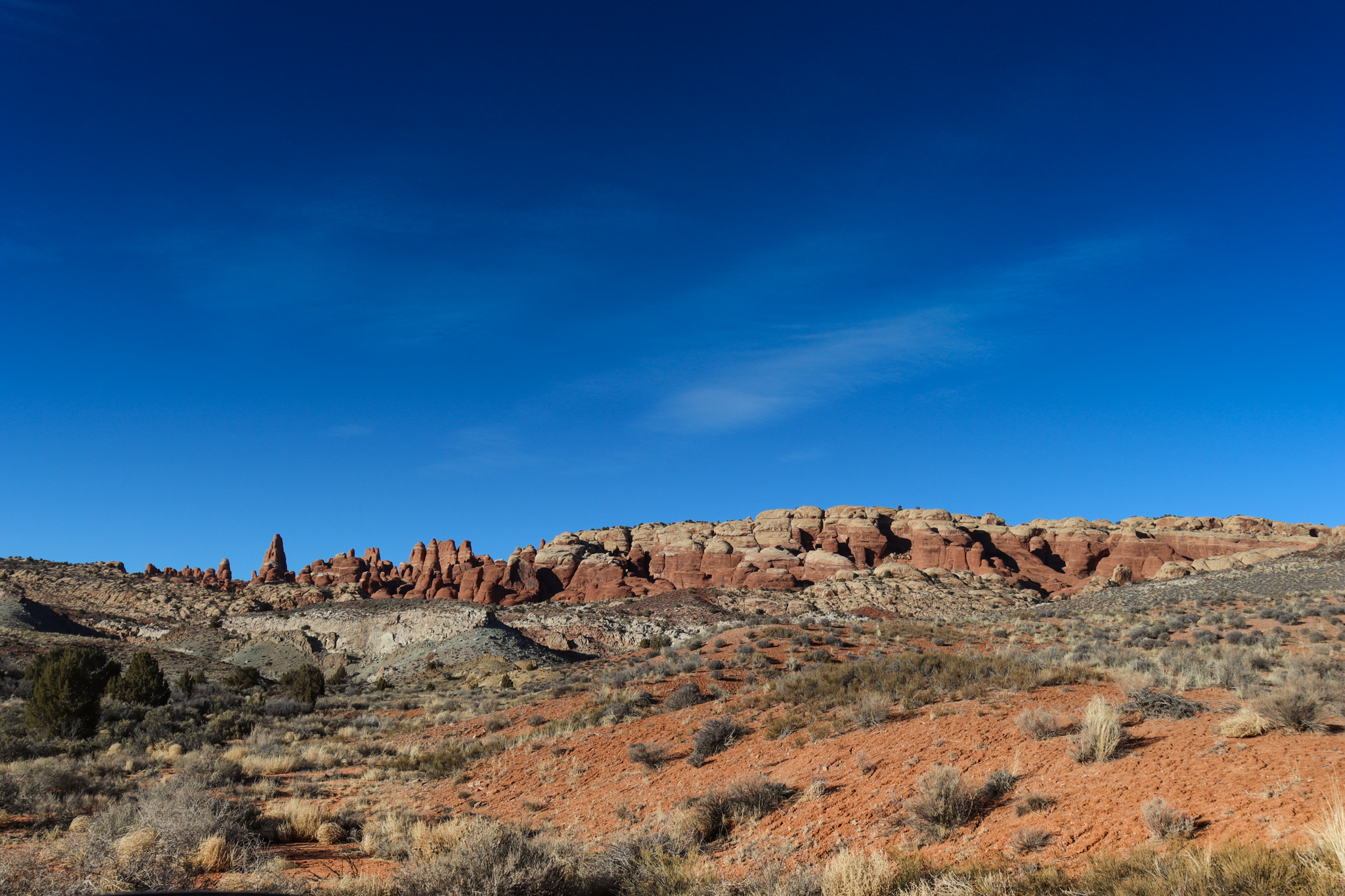
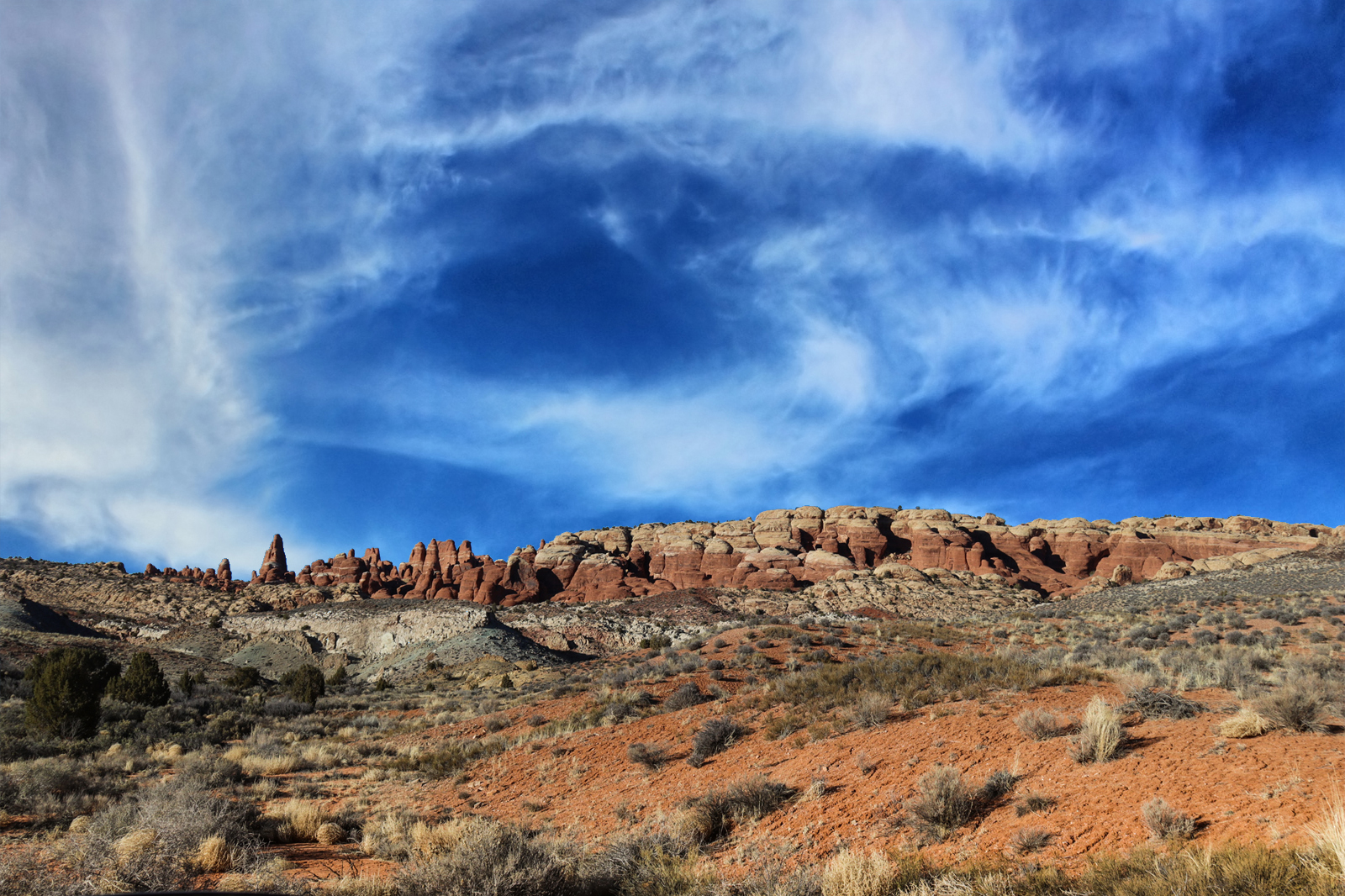
The first edit shown above was a simple process for sky replacement. I placed an image of the sky I wanted behind my original photo and changed the sky’s blending mode to multiply. Then I used a mixture of Blend If and layer masks and brush tools to remove the original sky with decent feathering so as not to leave a harsh line between the two photos.
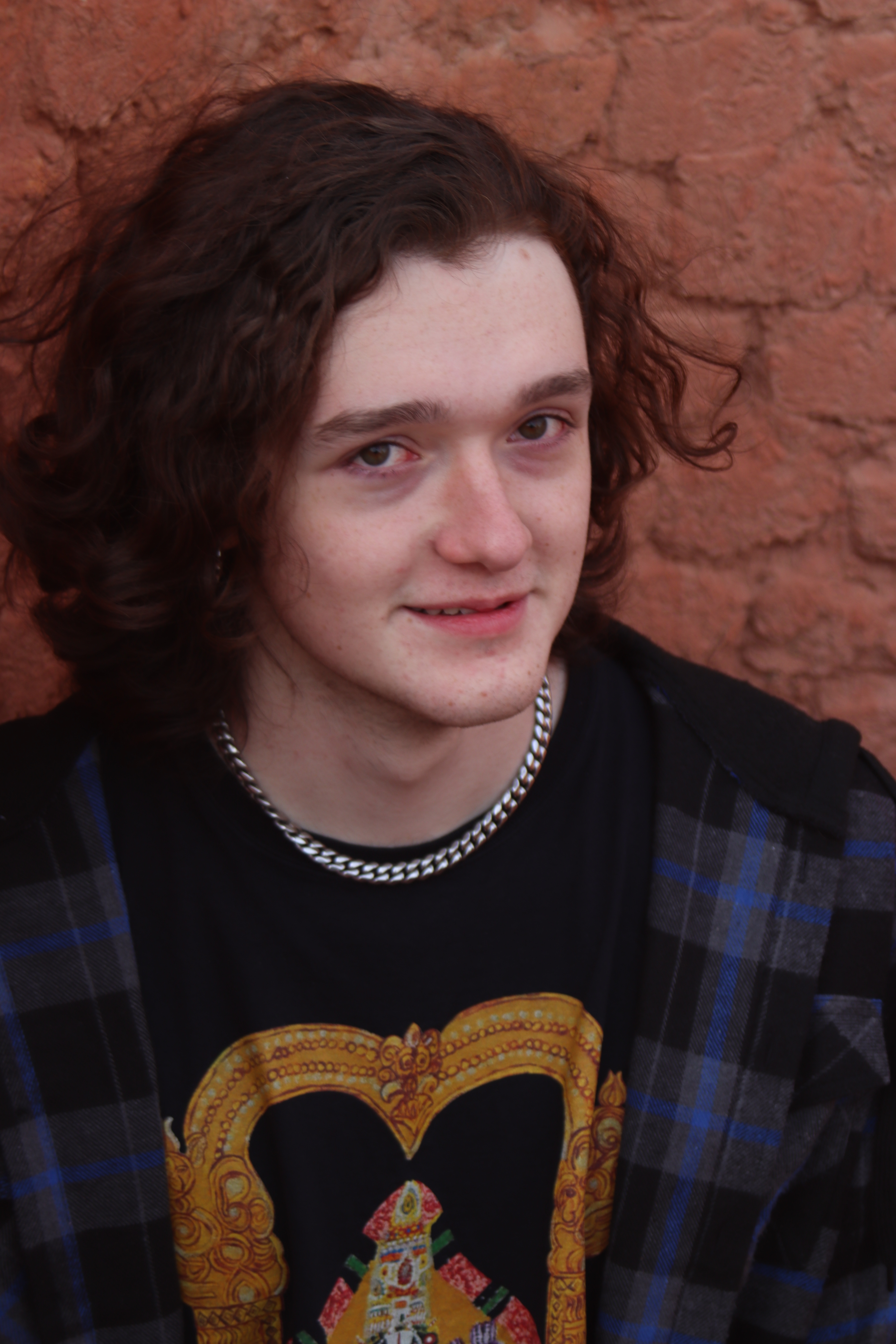
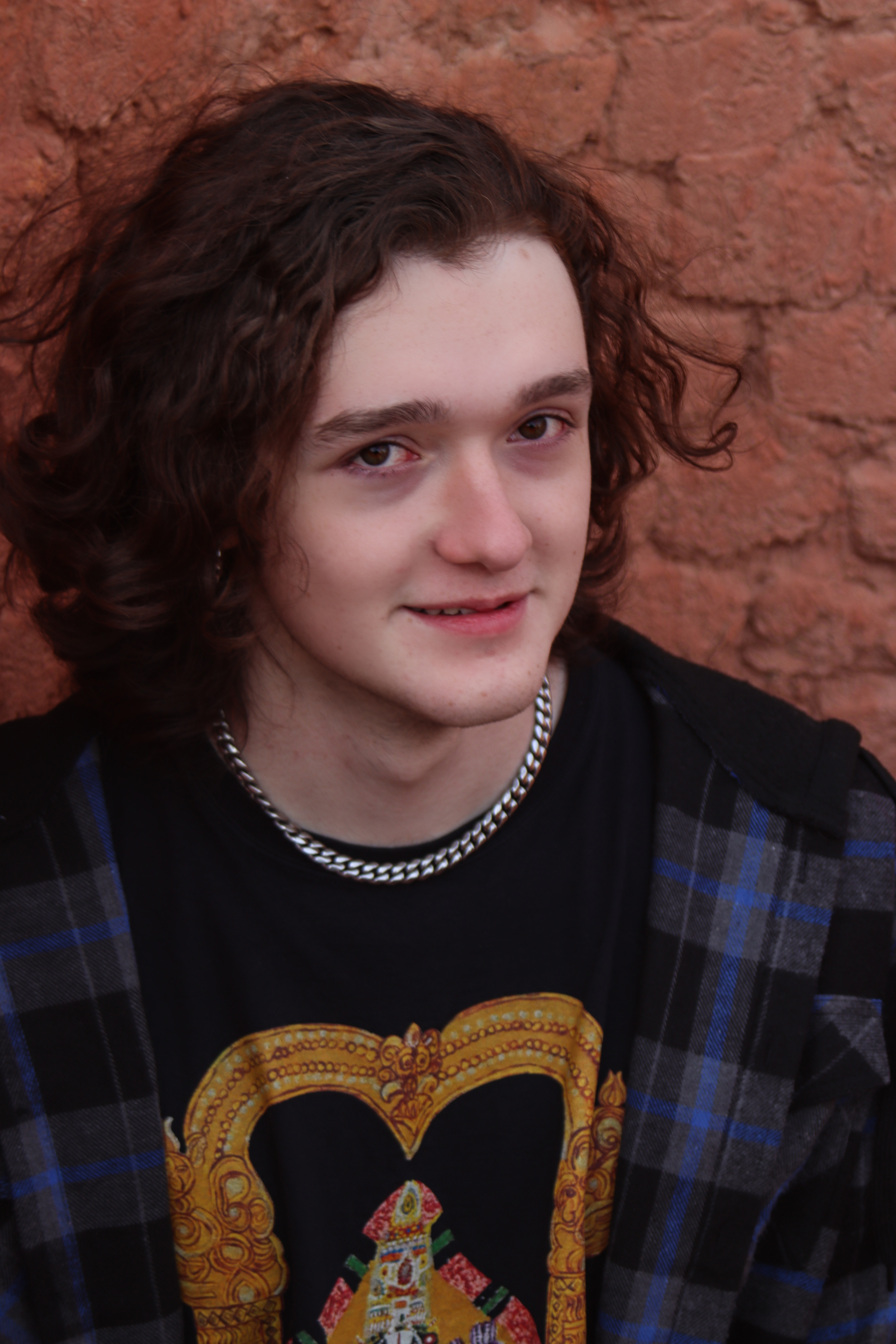
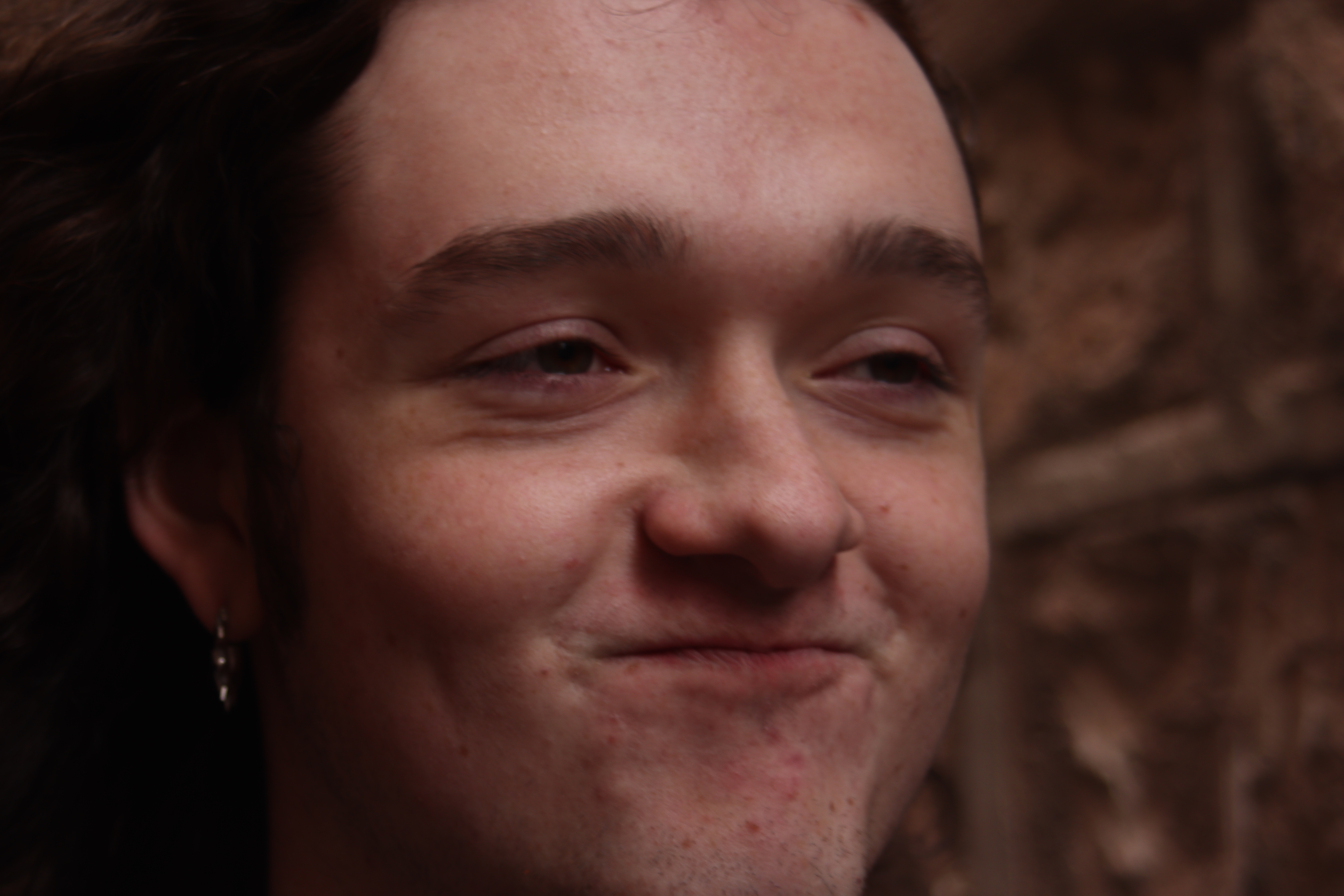
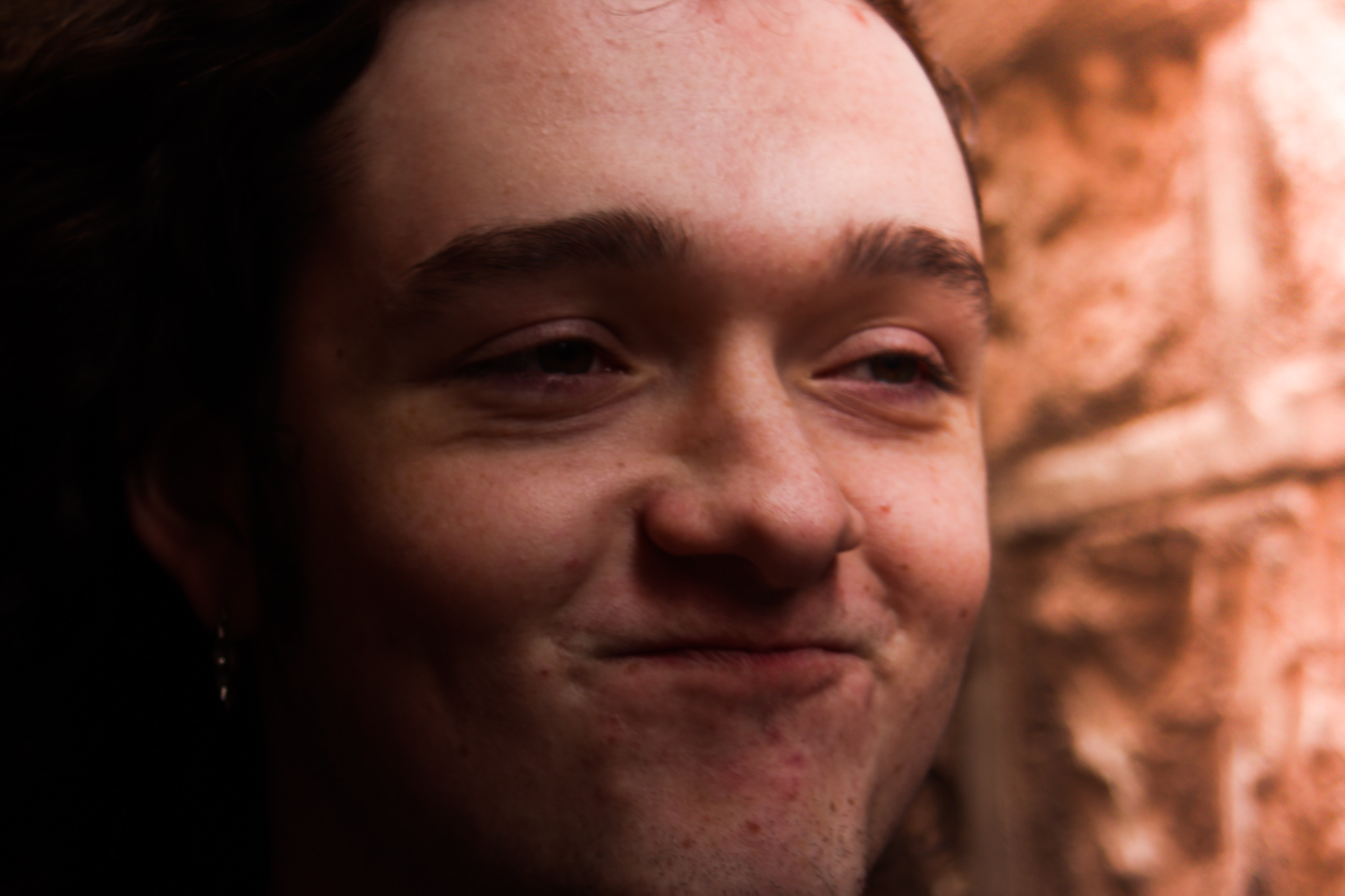
For this next photo, I smoothed out the skin and made the color of the eyes pop out more. First I made my photo into a smart filtered photo. For the skin, I created two copies of the photo in layers and grouped them, then added blur filters to the first layer, then changed my blending mode to linear light and added a high pass filter in the second layer. I created a layer mask on the group layer and used a channel filter to brush over the skin of the subject. For the eyes, I created an empty group layer, masked it, and used the channel filter to make only the iris and pupil of the eyes visible. I then added a brightness/contrast and hue/saturation adjustment layer, and drastically enhanced brightness, contrast, and saturation. for both skin and eyes, I brought the opacity of the layers down to around half their opacity, because the changes are meant to be subtle.
Macro

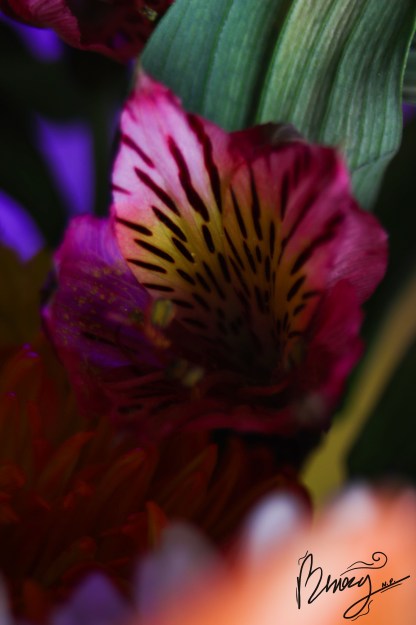
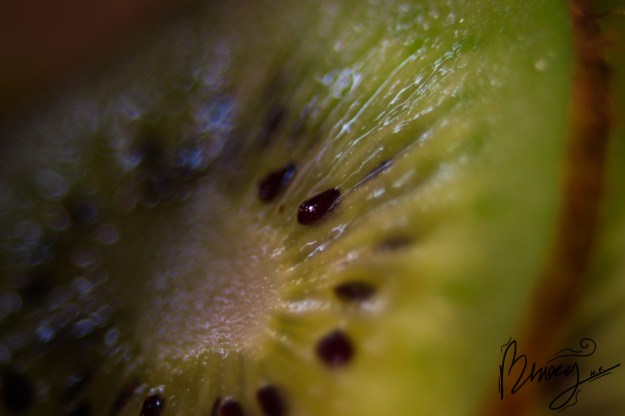
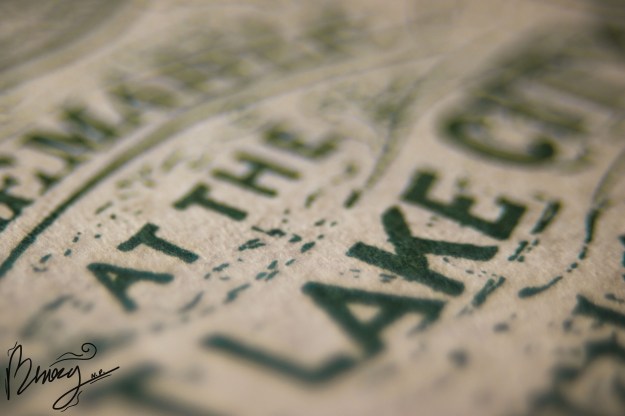
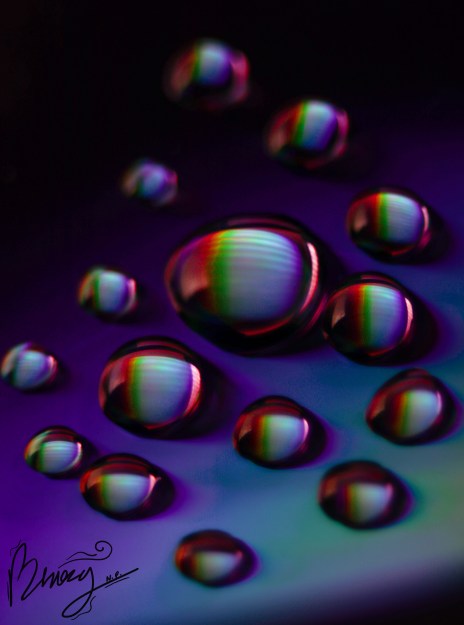
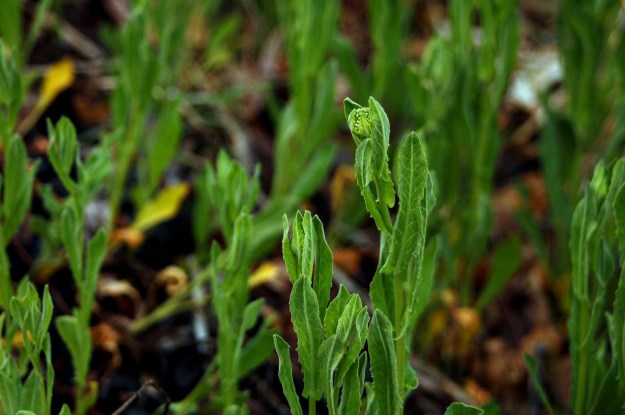
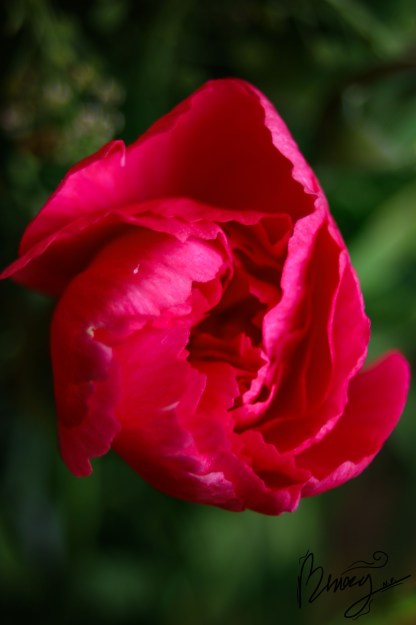
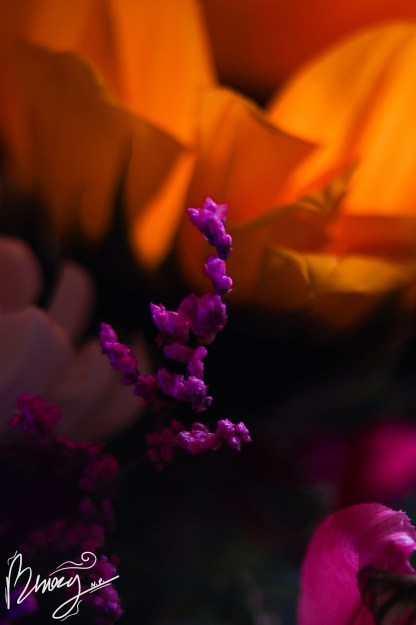
Macro photography is an extremely detailed closeup of the smaller things in the world. To do this you will need a macro lens extension. Exposure becomes difficult with this style because of the extreme zoom. It also requires a steady hand and some good timing. You typically want to put your focal adjustment in manual mode and move back and forth to find the right exposure. I take burst shots when I do this because it is difficult to stay in the same place long enough to take a photo.

Lightroom

Lightroom is a good alternative to Photoshop if you need a quick edit. As an example, I have edited these photos using specific edits, and I have shown you the original photo as well. The first photo uses a combination of gradients, adjustment brushes, and slider edits. The second photo was edited using only adjustment brushes. The third was edited using two opposing gradients. The fourth was edited using slider edits. The fifth was a combination of slider edits and two opposing gradients.

All Edits
Adjustment Brushes
Gradients
Slider Edits
Custom Edit

Infinity War Effect

This is one of my favorite photo edits to make. To do this, you have to create two layers. In one, you remove the object you want to edit. In the second, you use the Liquify filter to warp the image in the direction you want it to go. You then create layer masks for both. Once you have done that, create a custom splatter brush in photoshop. In the first layer, use the splatter brush to make some of the inside of the object disappear, as well as the edges. In the other layer, you use the brush to bring out wisps of the warped image, creating an ashy effect.

Autofocus Points

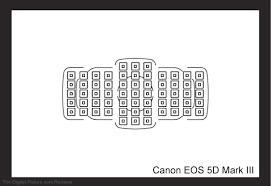
Autofocus points are the sensors that allow you to focus on a subject. You would see them as squares or rectangles in your lens that you use to focus. Autofocus looks for lines in your image and finds the thing your trying to focus on. Some points only focus or look for horizontal lines, some look for vertical lines. Some points (especially on more advanced cameras) have cross focus. They focus on both vertical and horizontal lines in their viewfinder. I have a Canon EOS Rebel SL3, which has nine AF points across the optical viewfinder. This includes a dual pixel CMOS AF system which allows me to focus on a precise area within the subject I’m photographing. All of my AF points are cross-focus. Most newer cameras will try to make as many of their AF points cross-focus as possible, though some older cameras will have horizontal or vertical, with the occasional cross-focus point.

Focal Length

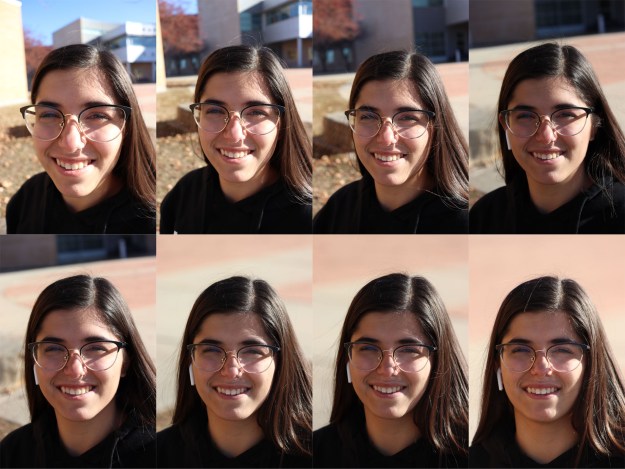
Focal length is just what it sounds like. How far away you are from your subject affects how the image presents itself in terms of what is in focus. For this, I took photos of my subject, backing up further and further with each photo and zooming in on my focal length. The focal lengths I used were 18mm, 25mm, 35mm, 50mm, 70mm, 135mm, 200mm, and 300mm. As you can see, the 70mm mark is the most accurate to the subject, and the further or closer I got from the subject, the more warped their features became. For something like portraits, typically 70mm is the best focal length, but for this and other photos, focal length can be used to further manipulate the photo to how you want it to be viewed.

The Exposure Triangle

There are three parts to a decently exposed photo. There is Aperture, Shutter Speed, and ISO. Each part of the exposure triangle plays into each other and contributes to the composition and exposure of every photo.

Aperture

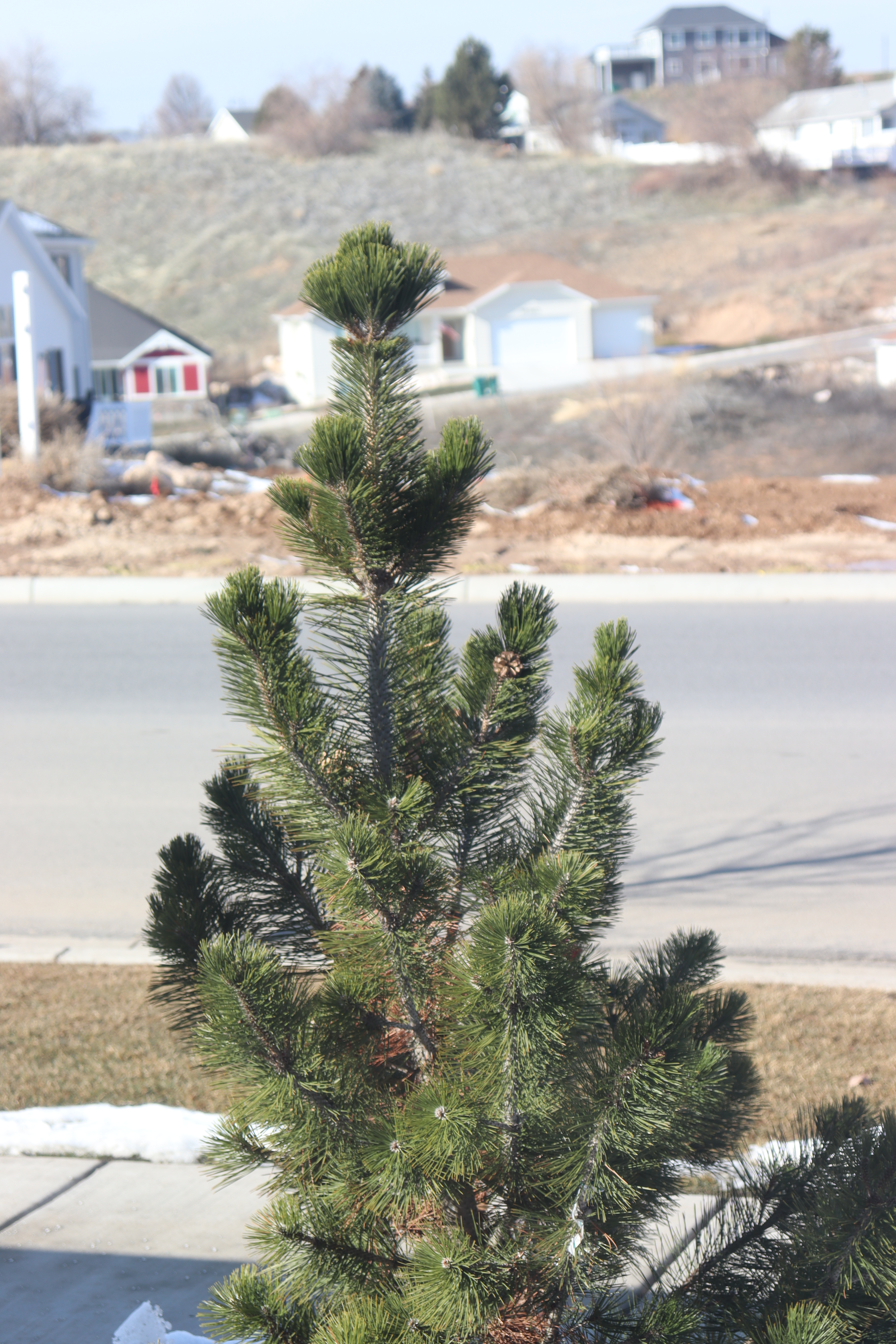
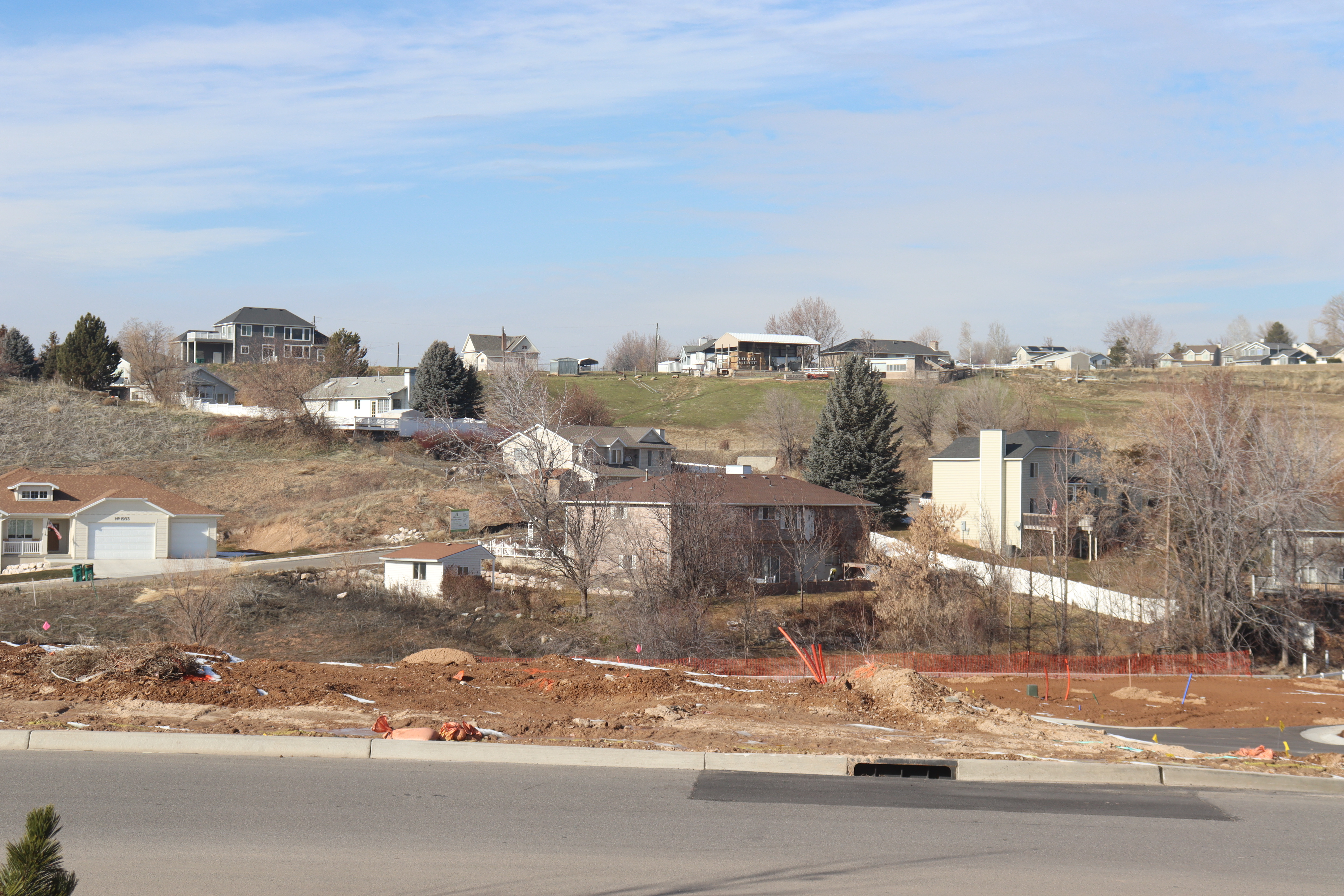
Aperture is how much light is being let into the camera via the lens. The wider the lens is open, the more light is let in. As well as that, the wider the lens is open, the less focused the background will be. In the first image, I had an aperture of 5.6, and in the second it was 22. Notice the difference? An aperture of 5.6 will blur your photo more than an aperture of 22. A wide aperture is typically best for photos where you want the focal object to be the only thing in focus, such as portraits. A narrow aperture is normally used when the entirety of the photo in the frame should be in focus, such as landscape photos.

Shutter Speed

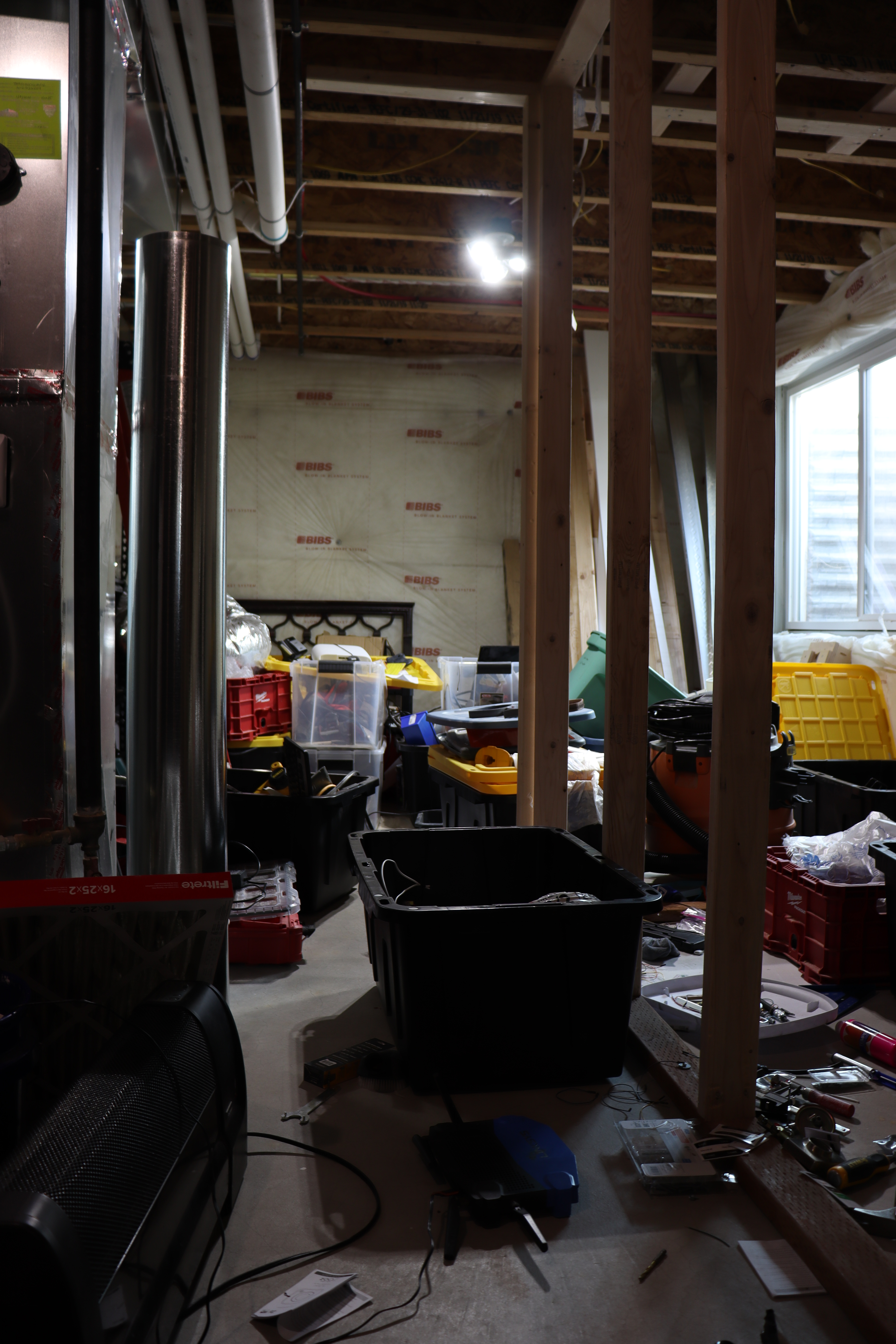
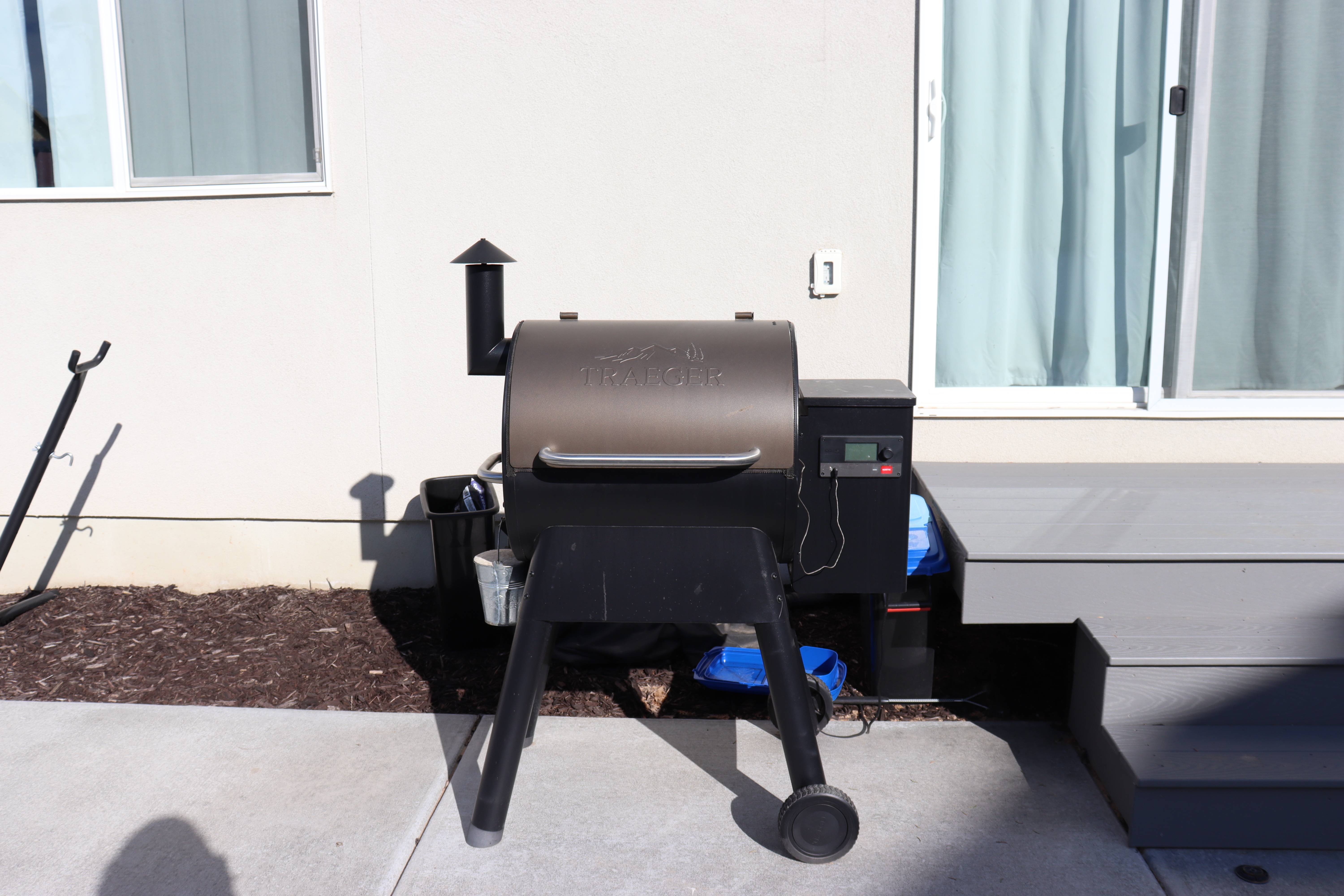
Shutter Speed is how fast the curtain in the lens closes, or basically how fast the image is taken. Typically the slower your shutter speed, the more movement will be caught in the form of a blur. You need a shutter speed of at least f/250 for a blur motion photo, and f/500 is typically best for freeze motion when you want a moving object to appear still. The photos I have do not show this, but with the difference in lighting, I adjusted the exposure only using shutter speed.

ISO

ISO will brighten your photo at the expense of image quality. Typically you want to use this as a last resort when adjusting the aperture and shutter speed fails to expose the image. In any other circumstances you want your ISO to remain at 100, but keep in mind that the higher your ISO goes, the more “noise” will appear in your image. This noise is pixilation, which makes your image grainy and puts it at a lower quality.

Glitch Photos

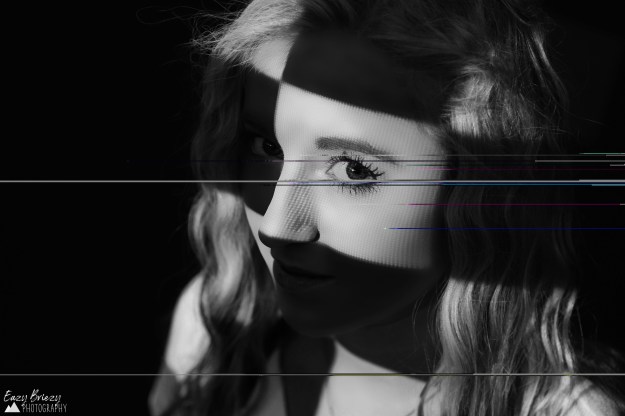
Glitch photography is super fun and extremely unique. No two photos will end up the same. To achieve this effect you will need to create a copy of the original photo, so as not to corrupt the photo itself. I made a mistake this time and forgot to complete that step, so this is the original photo, and I can’t undo it if I need to, unfortunately.

Once you have created a photocopy, you will open it in the Notepad++ app (if you don’t have it make sure to download it). It is absolutely imperative that you do not mess with at least the first fourth of the data (scroll down until at least that far) or you will corrupt the file. Beyond that, however, you can basically just delete and type at random anywhere else (I copied several John Mulaney jokes into this photo in random sections). Then to view your progress, every few changes you should save your progress, then go into your files and reopen the photo into your photo viewing app.