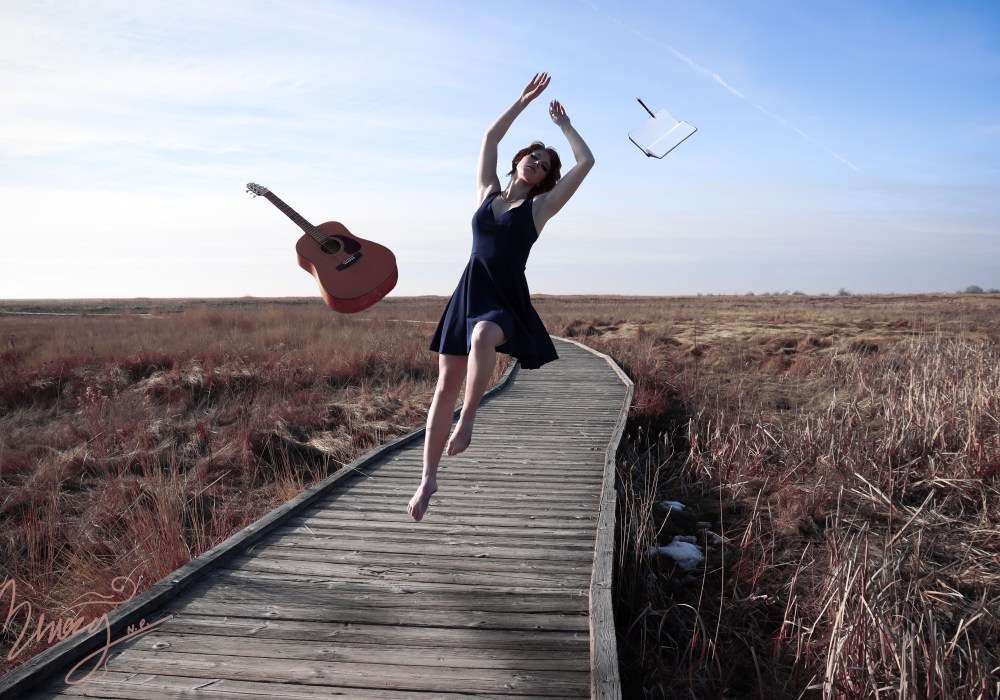
Masks and Levitation
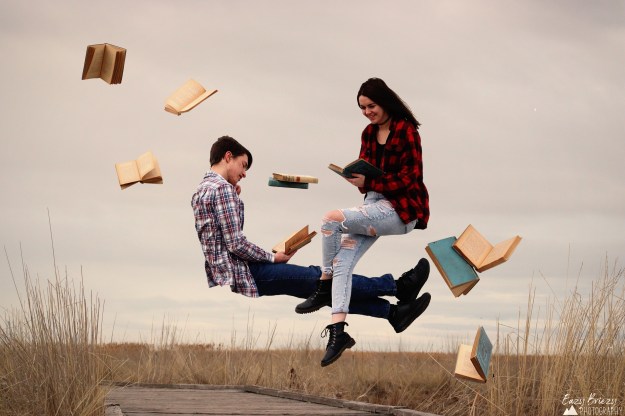
Levitation Portraits are some of my favorite types of conceptual artistry. They are quite simple and fun to make and give you plenty of room to get creative and experiment with strange color compositions, dramatic lighting, and object placement. These are the kinds of photos in which you can really get away with shifting reality in a way that most other photos won’t allow for.
Background Image 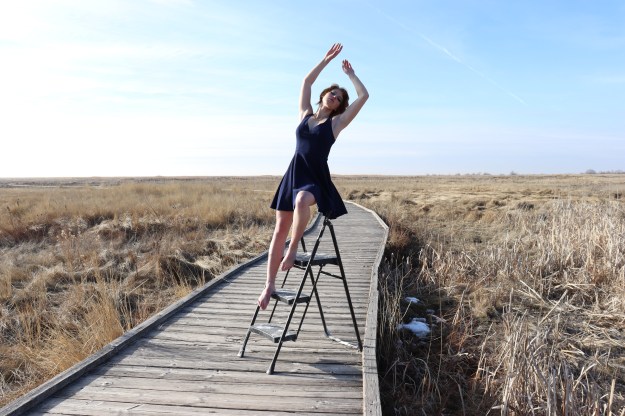
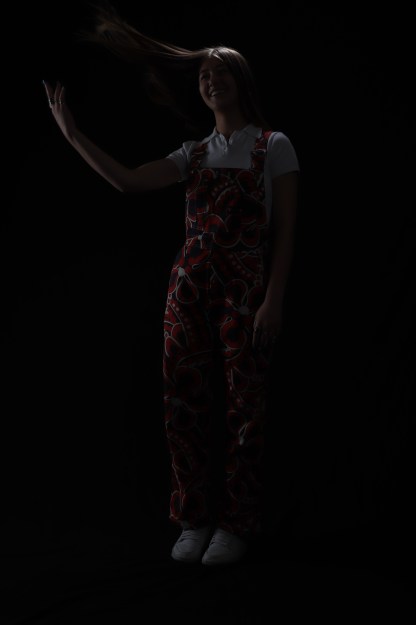
Main Object Image
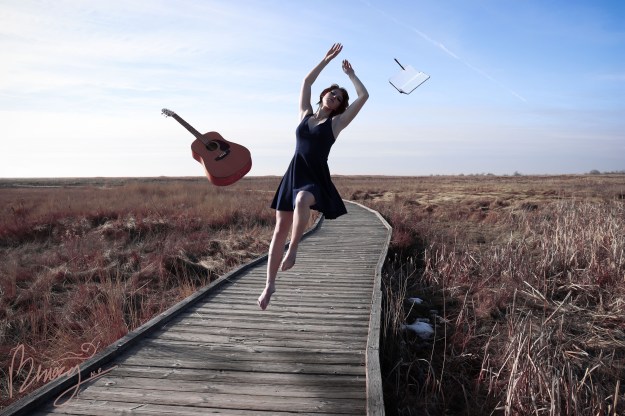
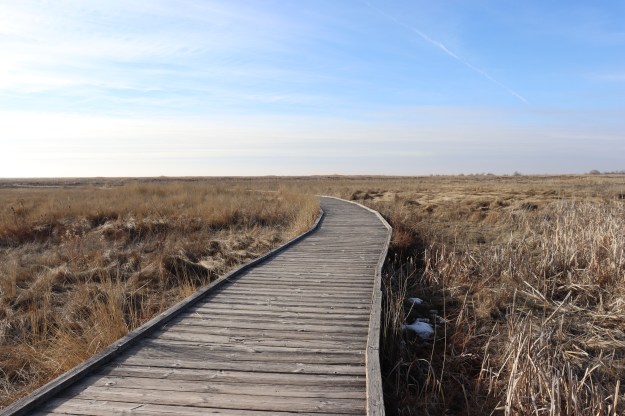
To achieve this effect, you will want to start off with two basic types of photos. One of each of the objects of interest, and one of the background. The position of these photos will need to be as identical as possible, so I would recommend you have a tripod and shutter remote with you. I would also recommend these photos be done in cloudy weather, as shadows can complicate things. As you can see, my photo was done in sunny weather, but I had to go to the extra trouble of creating artificial shadows in photoshop. The object of interest needs to be resting on an object (such as the ladder in the photo above) or held by an assistant, in a way that keeps any part of the assistant from covering the object itself. When placing my model on the ladder I asked her to position herself in a manner that made it seem like she was not actually sitting on the ladder (notice the position of her feet respective to the ladder). I then adjusted her clothing to make it seem unattached to the ladder itself. While posing may be awkward for a moment, it is important to make the position of the model seem natural. I had her lean back as far as she was comfortable with, and gave her breaks from that pose as often as possible.
Editing Process
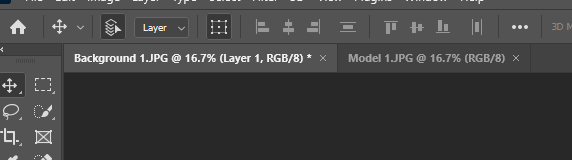
Step 1: Place the object layer over the background layer (you can do this by dragging the model photo to the tabs at the top of the Photoshop window using the Move Tool, then releasing it over the background photo).
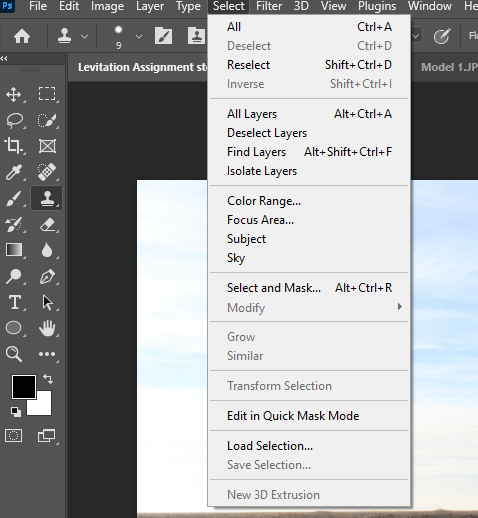
Step 2: Make sure the object layer is selected. Then go to the top of the window and choose Select -> Subject. This will cause a selection to appear over the object.
Step 3: Create a Layer Mask. The background should disappear. Use a Soft Brush tool to fix any edges or remove any background that wasn’t removed.
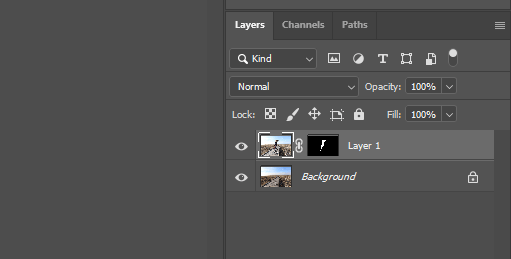
Repeat this process for any other objects you want to add to your levitation.
Step 4: You will begin to add shadows if needed. This step is optional, and if you took your photos in a cloudy environment, you shouldn’t need to do this. Steps 4-10 will cover this, so if you don’t need this part of the tutorial, skip to Step 11. To do this, choose your Object Layer, then right-click on the layer mask and select Apply Layer Mask. This will merge the mask to the layer itself. Copy the layer, then select the layer copy. Make it so only the selected layer is visible.
Step 5: Once again go to Select -> Subject like in Step 2. Apply another layer mask. Use the Brush Tool to fix the edges if needed.
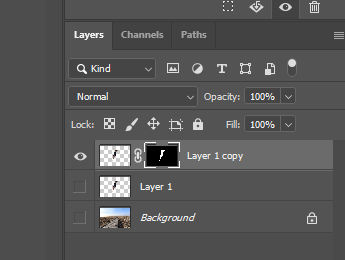
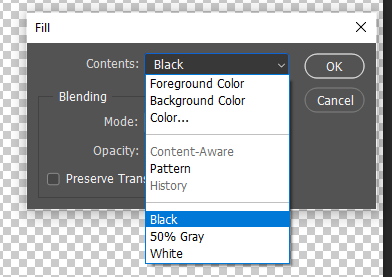
Step 6: Make sure the visible layer is selected, and not the layer mask. Select Edit -> Fill -> Contents -> Black. Click Ok. The object in question should turn into a black silhouette. If something other than that happens, make sure you have selected everything correctly. Once you have successfully done this, apply the Layer Mask once more. Make all other layers visible again.
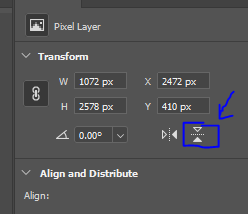
Step 7: With the Shadow Layer selected, click the Vertical Flip option in your Transform Window. If the lighting and positioning of the object and shadow really call for it, it wouldn’t hurt to use Horizontal Flip as well.
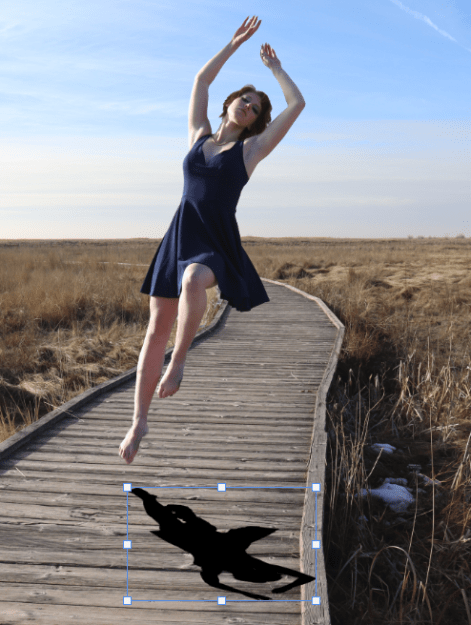
Step 8: Using the Move Tool, Ctrl+Click and drag the bottom axis of the silhouette until it is relatively shorter (or longer) than the object itself. During this point, be sure to keep the rules of lighting and shadows in mind, or it will become disproportionate. If it helps you can drag the shadow to the area you plan to put it before you adjust the size. Once you have done that, you can rotate and move the shadow to about the angle and position you want it in. Whether or not it goes out of frame doesn’t matter, as long as it follows the light pattern.
Step 9: With the Shadow Layer selected, go to Filter -> Blur -> Gaussian Blur.
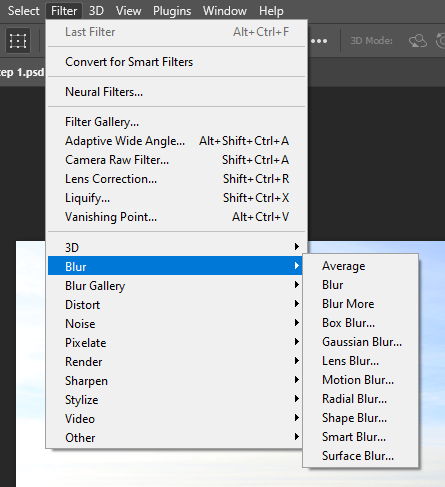
You can mess with the blur however you want, but keep in mind that the slider is sensitive, and it won’t show you the look until you let go of the slider. You want it to be as blurry as possible while still keeping the silhouette. For this shadow, I went with a range of 30-45.
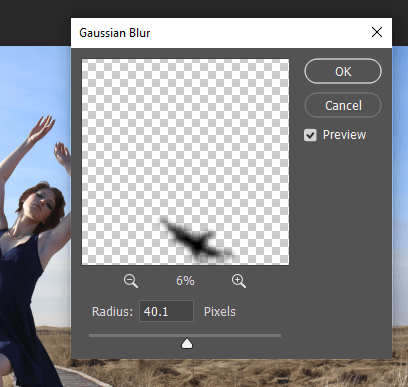
Step 10: Go to the Layer Opacity and lower the opacity. You will want less than half of the opacity under the majority of circumstances. Keep in mind that the harsher the sun in your photo is, the sharper and more prominent the shadow will be. For this, I went with 45%.
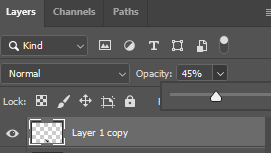
Adjust the shadow once more as needed. Repeat steps 4-10 for any other objects. Depending on the lighting and object placement, not everything in your photo may need a shadow.
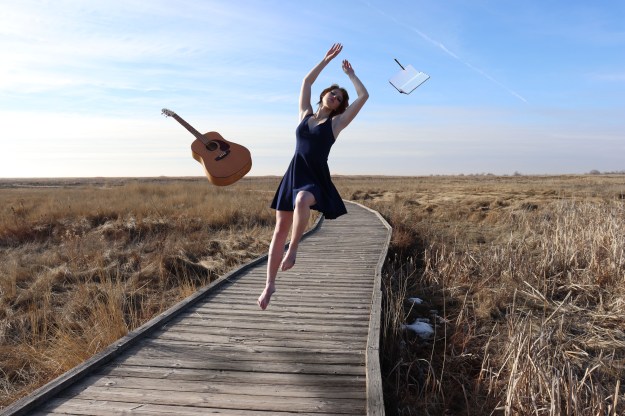
Step 11: Now that you have successfully created a levitation effect in your photo, you can edit the photo itself as you please. These next steps are also optional. With these kinds of photos, it is a lot of fun to experiment with radical colors, dramatic lighting, contrast, and all other forms of composition. Personally, I prefer to use the Camera Raw Filter to do this. However, the filter will only edit the layer selected, rather than the whole photo like an Adjustment Layer would.
To fix this issue, create a copy of every layer in your photo by selecting the layer and clicking Ctrl+J. Make it so that only the copied layers are visible.
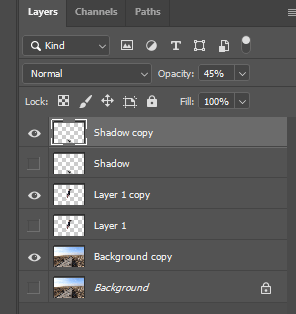
Select Layer -> Merge Visible, or type Shift+Ctrl+E. This will merge those copied layers.
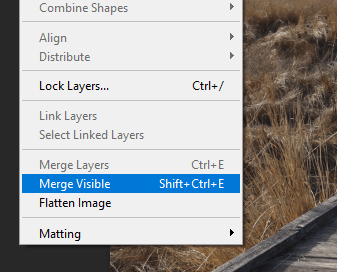
Make sure the new layer is at the top of your layer selection order. Use the newly merged layer for your filter. If you don’t want to go through the trouble, you can always just use adjustment layers and filters.
Step 12: With your merged layer selected, go to Filter -> Camera Raw Filter, or type Shift+Ctrl+A. This will take you to a properties window with a full range of adjustments.
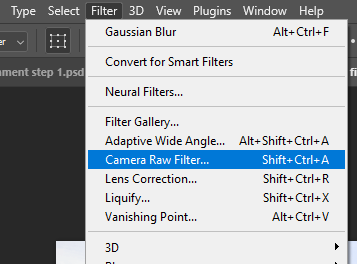
From there on, you can go ham. Something I would recommend in any photo is adding a vignette to the photo, even if it’s so faint that it seemingly doesn’t make a difference. If you toggle the before and after effects, you will see that it does. You can find the vignetting options in the Camera Raw Filter in the Optics and the Effects categories.
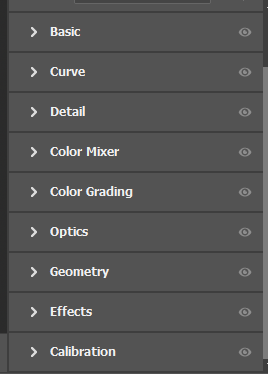
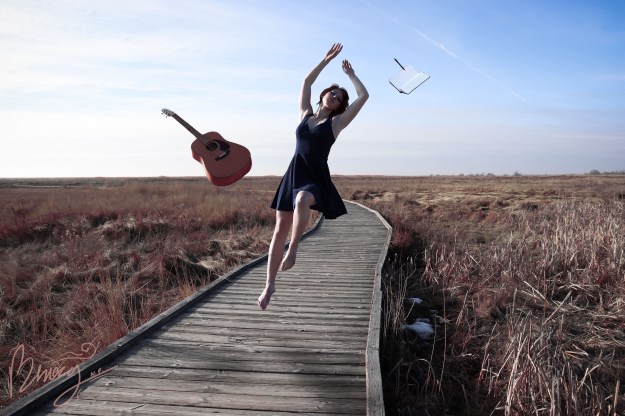
There are some other edits I chose to make, which I also recommend you experiment with. I added dramatic lighting/contrast, which you can do in the Basic category, along with many other basic exposure-based effects. I experimented with color composition, bringing out the red colors enough to stand out. You can do this in the Curve, Color Mixer, Color Grading, and Calibration categories, but I prefer to use Color Grading and Calibration. I adjusted the temperature and tint, giving the photo more of a cold blue hue. You can also adjust this in Basic. I did a lot of other edits as well, but I recommend that you take the time to experiment with every option and find what you like.
And then you’re done! Congratulations, you have successfully created an artistic levitation portrait!
If you would like a more basic description in PDF form, here is the link:

 Eazy Briezy Photography